
Trading 101
Disney Pinnacle by Dapper Labs offers always-on trading, allowing collectors to trade digital pins with others anytime in the mobile app and on web. With trading now built natively into Disney Pinnacle, the experience is easier to use, more seamless, and more directly connected to the product our community knows and loves. Collectors can copy and share their Trade Link, manage incoming and outgoing offers more clearly, and create trades with multiple digital pins at once.
Where: In the Disney Pinnacle by Dapper Labs mobile app and DisneyPinnacle.com/trade on web.
How does Trading works?
Collectors can access trading from the Trade tab in the Disney Pinnacle app or on web. From there, you can copy your Trade Link and share it with others, or open a trade directly with collectors you’ve traded with before.
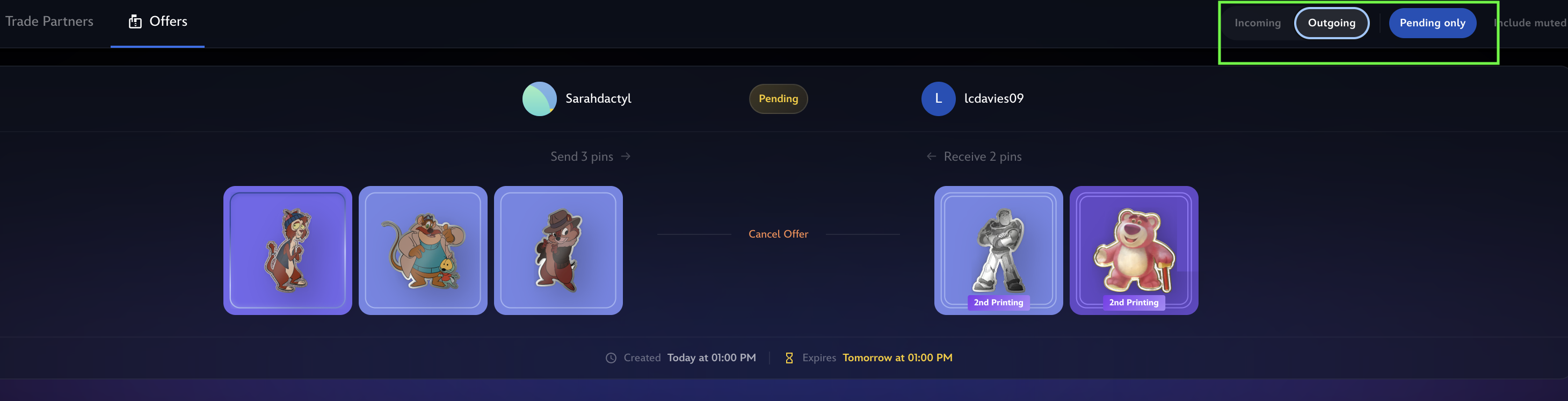
The trading experience is designed to make it easy to manage activity at a glance. Trading is organized into two dedicated tabs: Trading Partners and Offers. Within Offers, collectors can filter between incoming, outgoing, and pending trades, making it easier to keep track of active exchanges and previously sent offers.
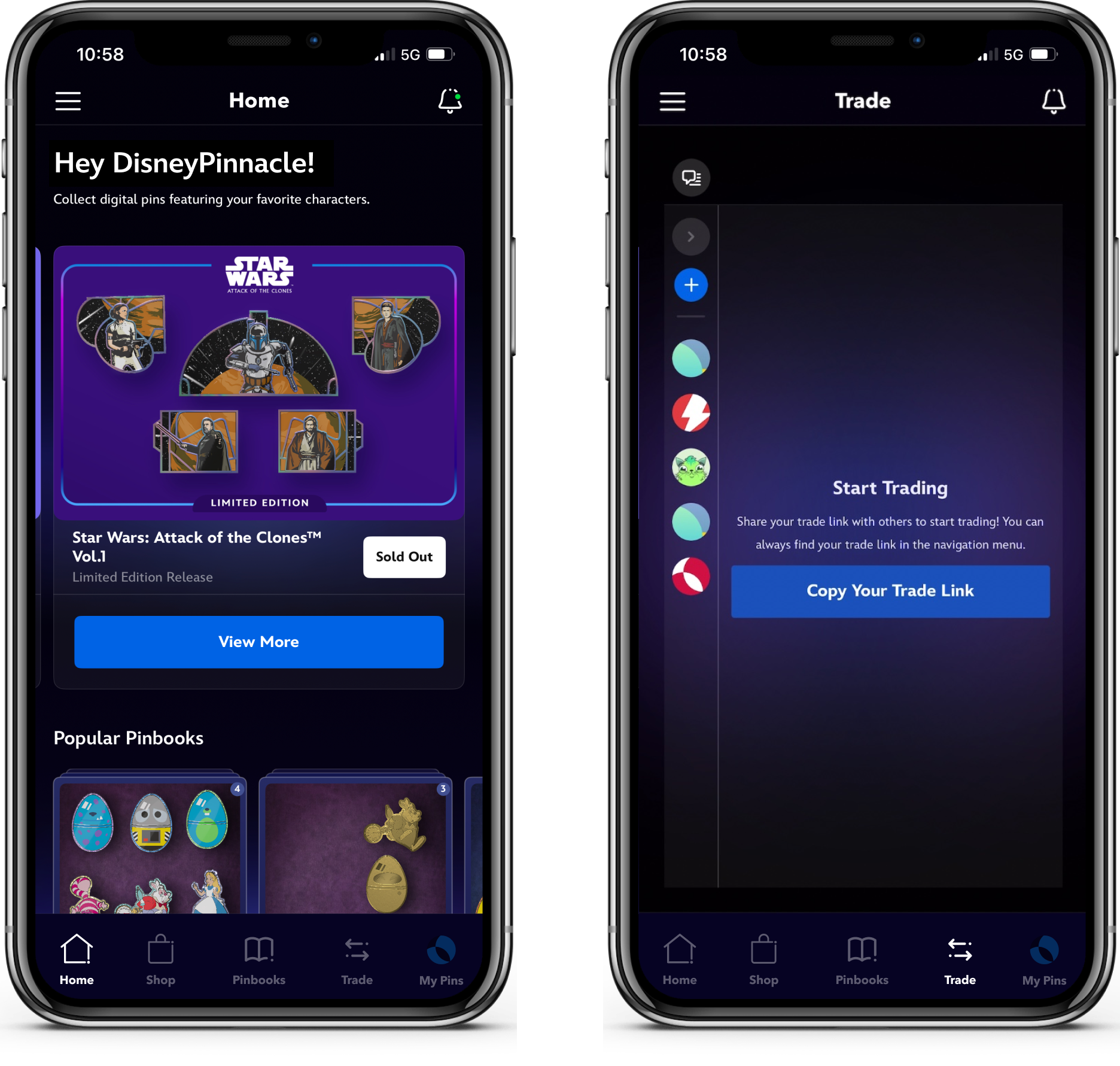
What’s new in trading?
Disney Pinnacle’s updated trading experience includes several highly requested improvements:
- Trading Partners and Offers are now separated into dedicated tabs for a clearer view of trading activity on web.
- Multiple digital pin selection allows collectors to include more than one pin from either side of a trade at the same time via mobile.
- Improved filtering makes it easier to compare collections and find the right digital pins faster
- Hiding pins from trades gives collectors more control over which digital pins appear when others create an offer
Creating and sending trade offers
Trade offers with other collectors can be created in two ways:
- Use someone’s Trade Link to directly open the Make an Offer screen with them
- Tap on the avatar of anyone you’ve previously traded with in the left side of the Trade tab. This list can also be expanded to view full usernames
Once you’re on the Make an Offer screen, you can search for digital pins to add to the trade offer. (Pro tip: use the filtering options to quickly find the perfect digital pins!). Remember, trades must include at least one (1) digital pin from each side.
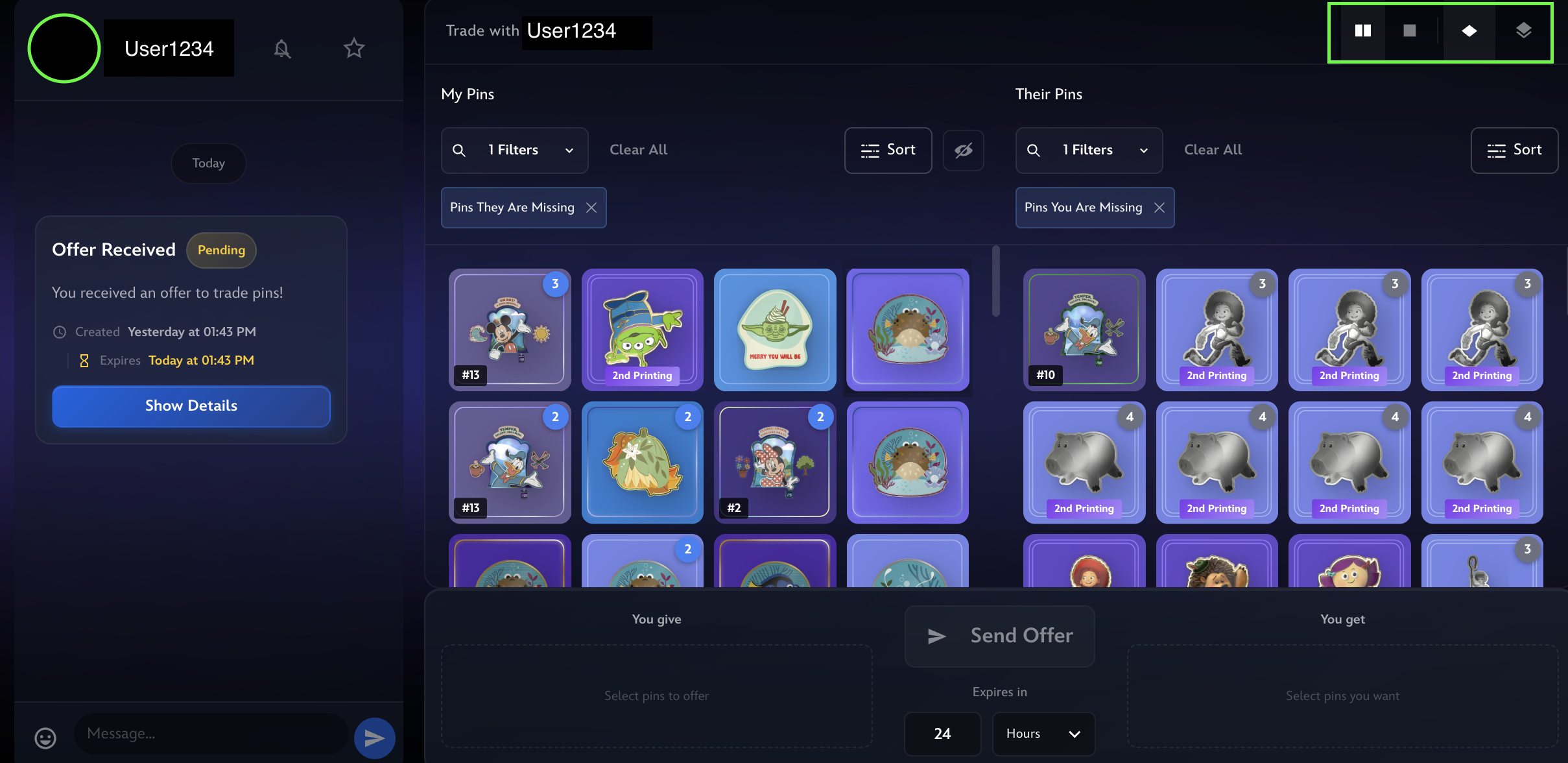
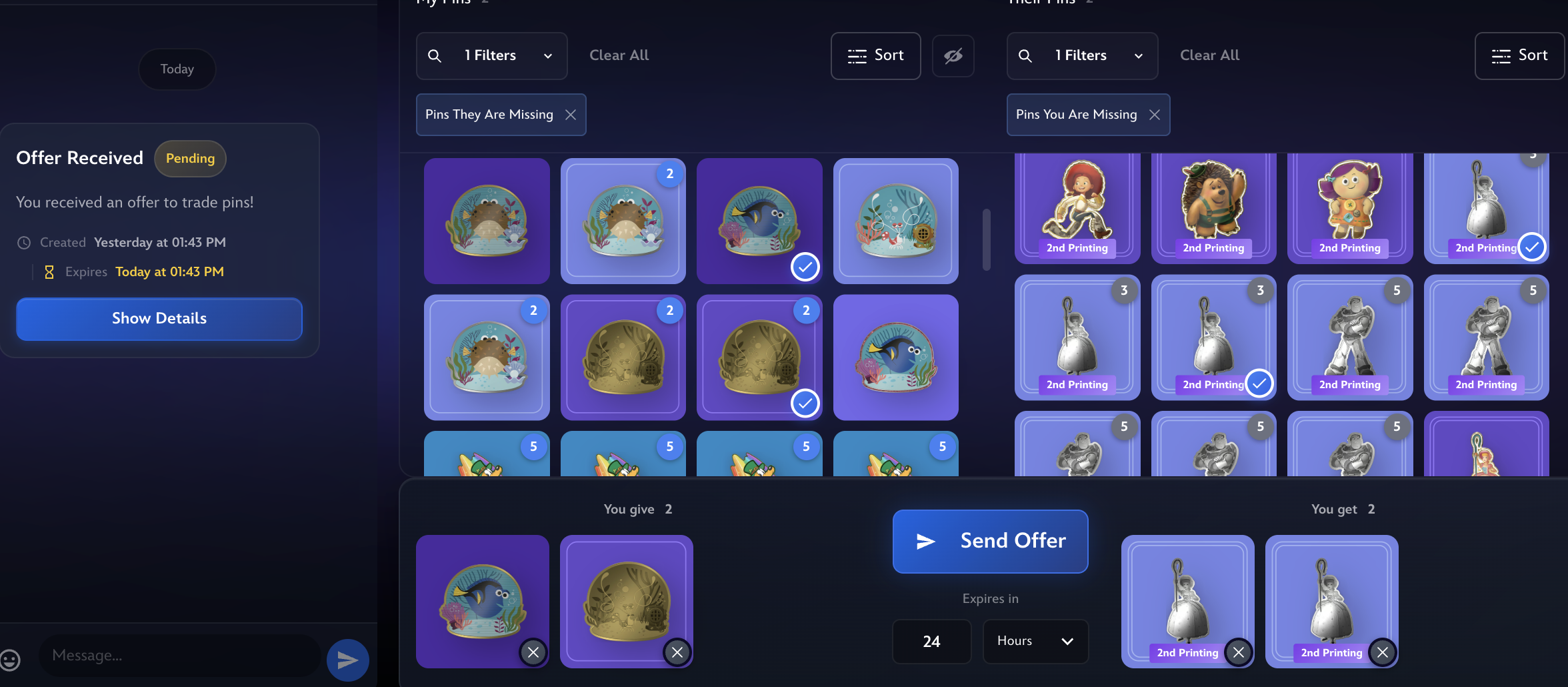
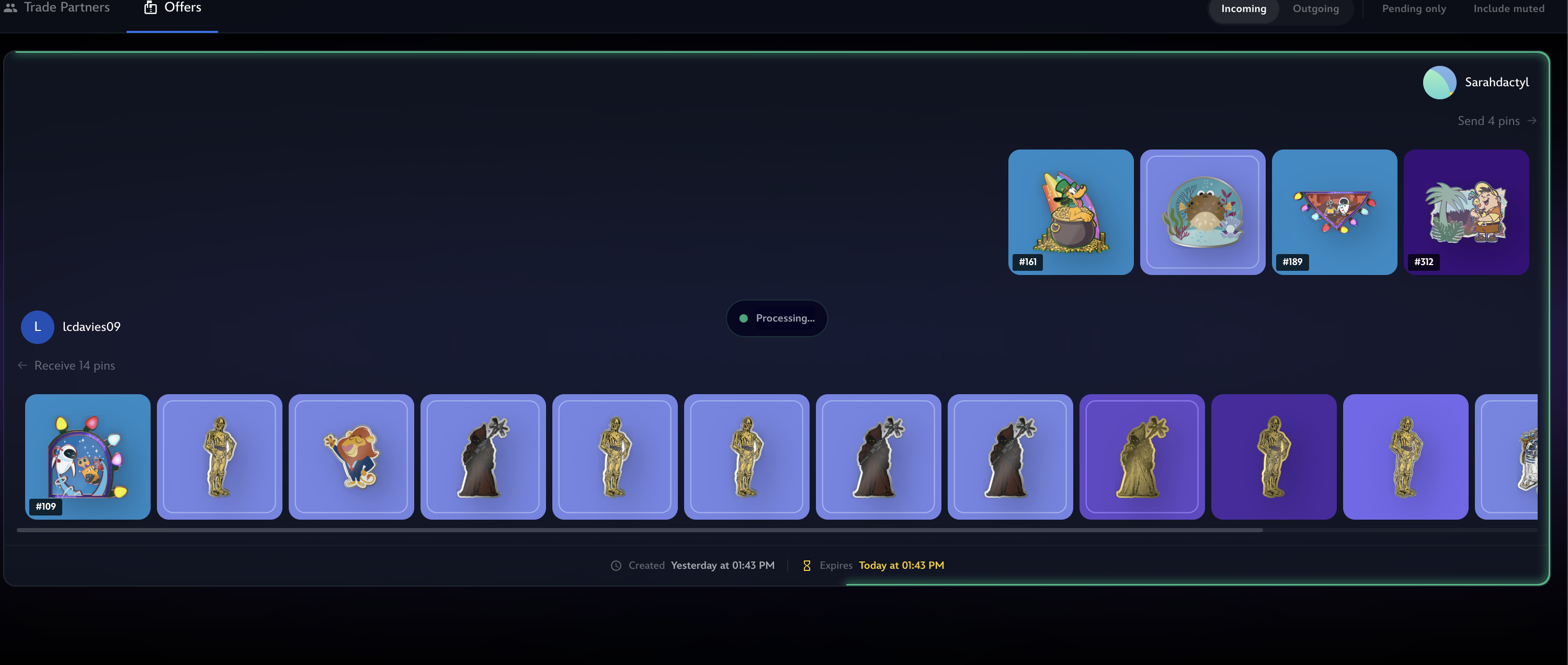
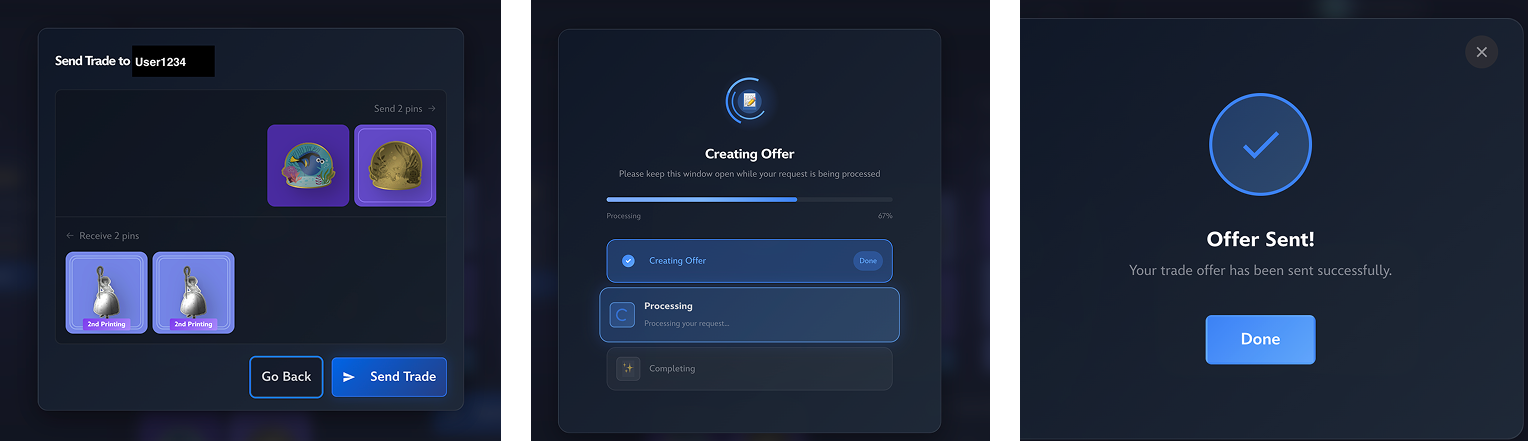
Make sure you only send trade offers you’re certain you want to complete! If your trading partner accepts your offer, your digital pins will immediately be traded, and completed trades cannot be undone. You can view any pending, declined, canceled, or completed trades with each trading partner in their Offers tab. From there, you can also cancel any pending offers you sent that they haven’t accepted yet.
Accepting or declining trade offers
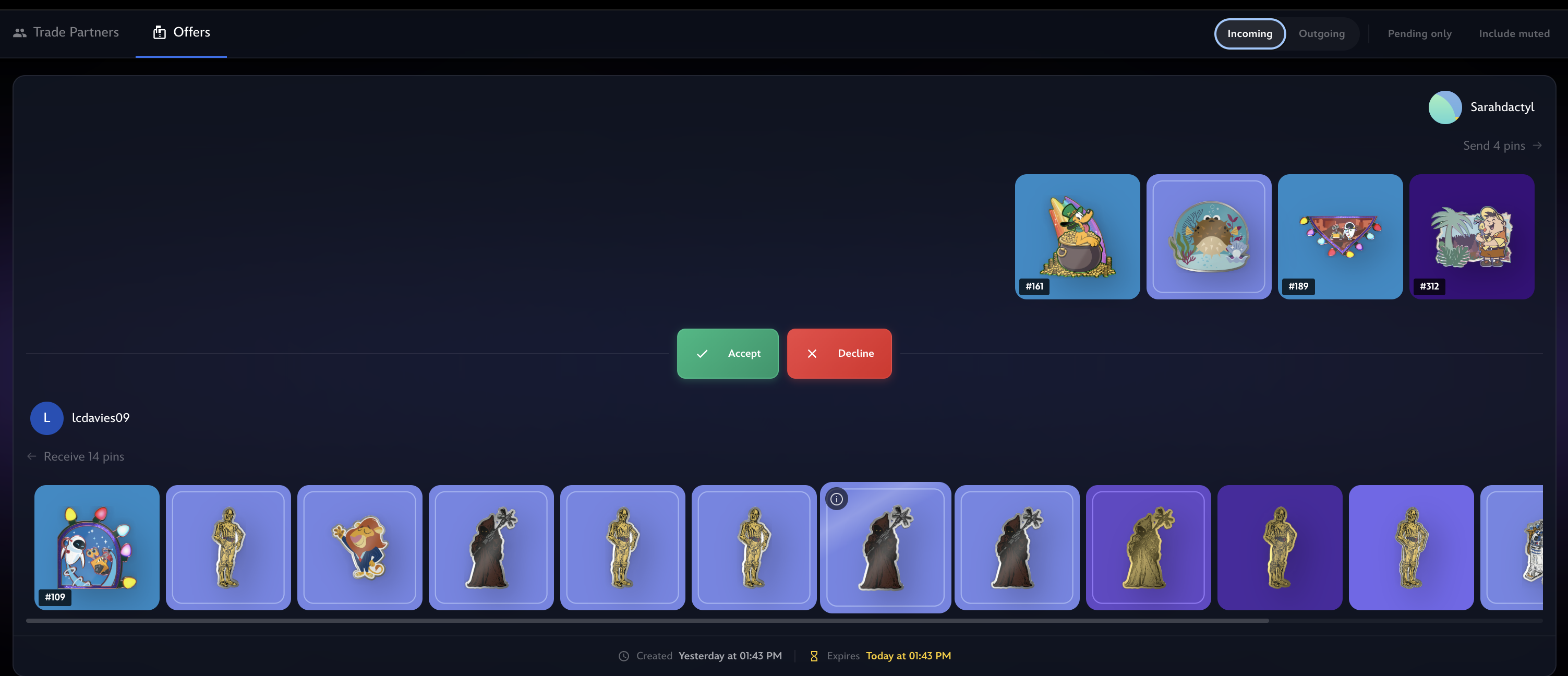
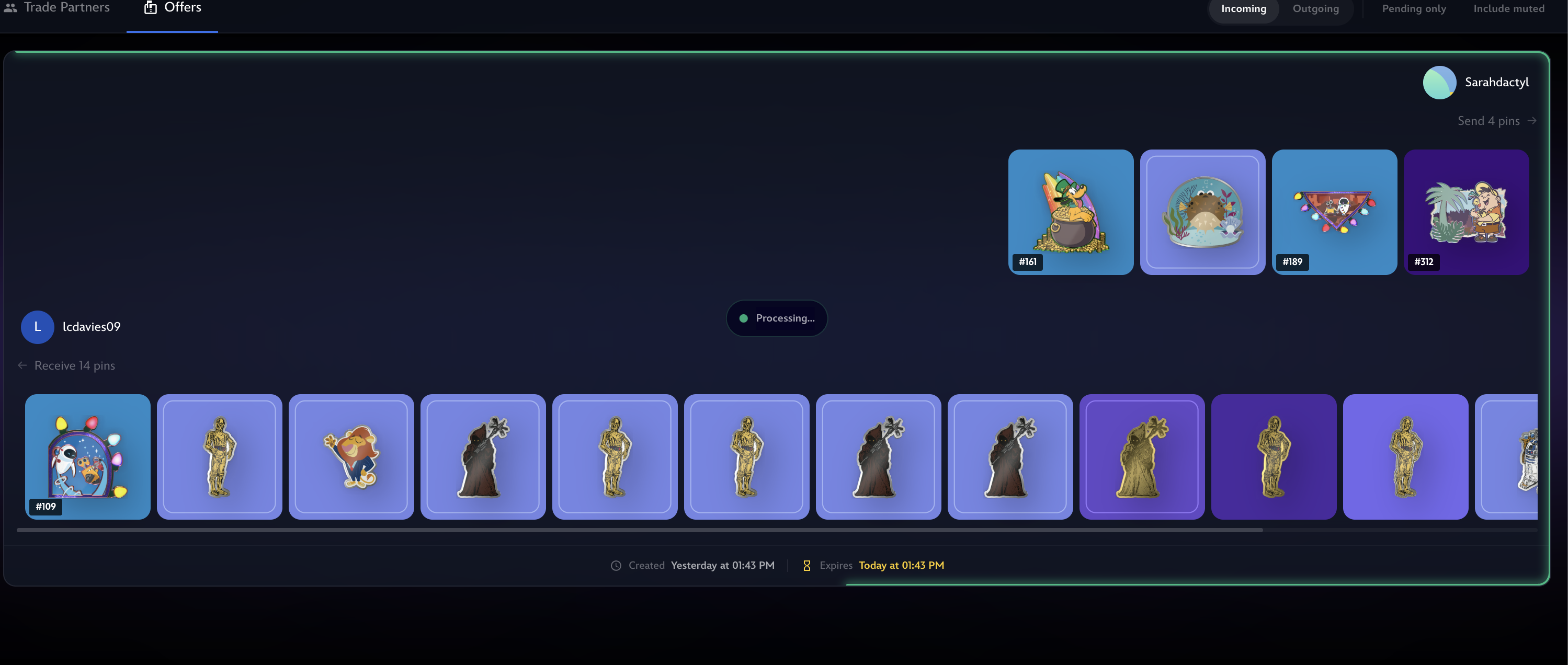
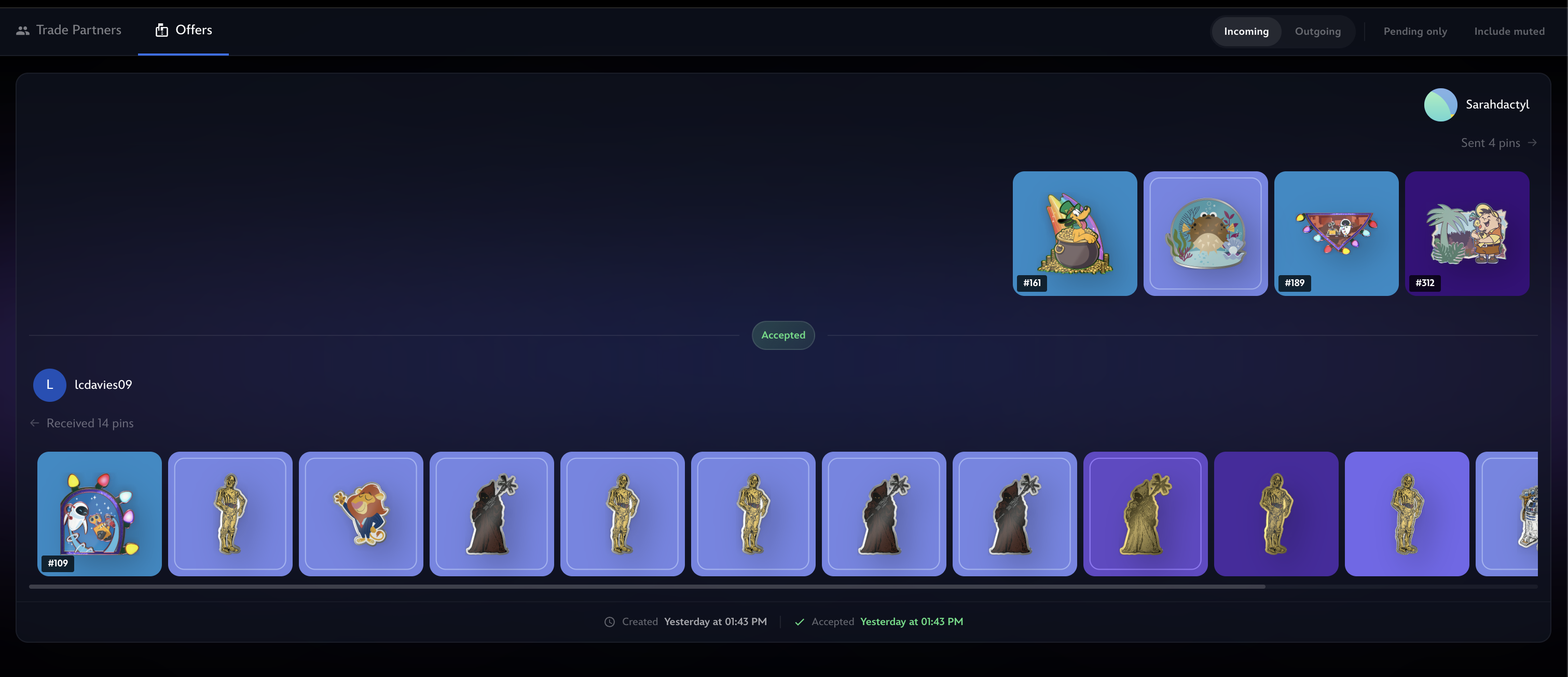
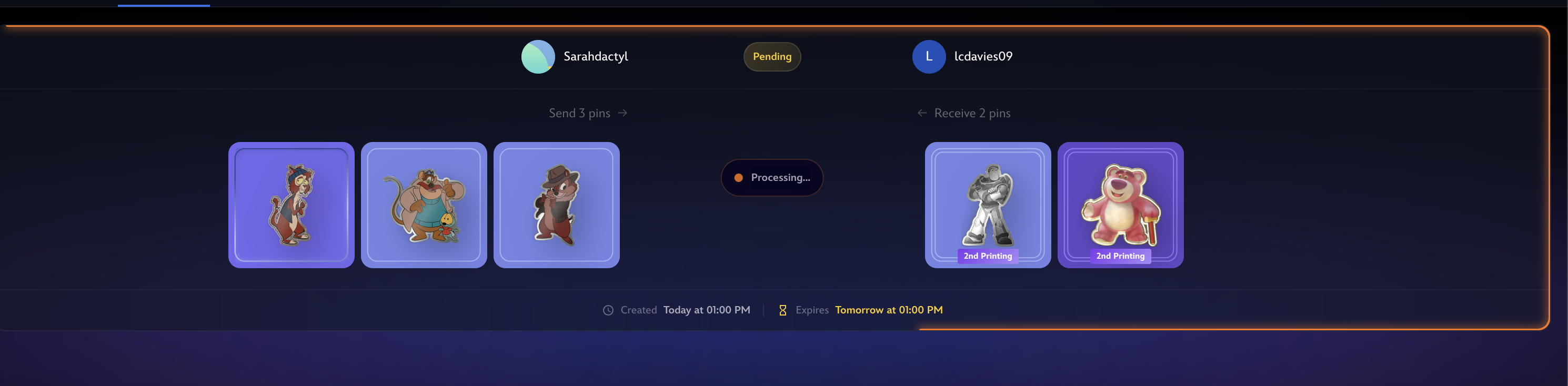
When someone sends you a trade offer, you’ll receive a notification and be able to view it in the Offers tab. From there, you can review the full offer details and choose to accept or decline. Once you confirm a trade, the system will process it and provide a clearer completion state. In the updated experience, completed trades are highlighted with a bright green confirmation treatment and a Trade Complete checkmark to make the final status easier to understand. Only accept offers you’re certain you want to complete, as completed trades cannot be undone.
Cancelling a trade
Collectors can cancel outgoing trades much more efficiently by going into their outgoing offers and sorting by pending. Click cancel and confirm again by click Cancel Offer.
Can I hide pins from trades?
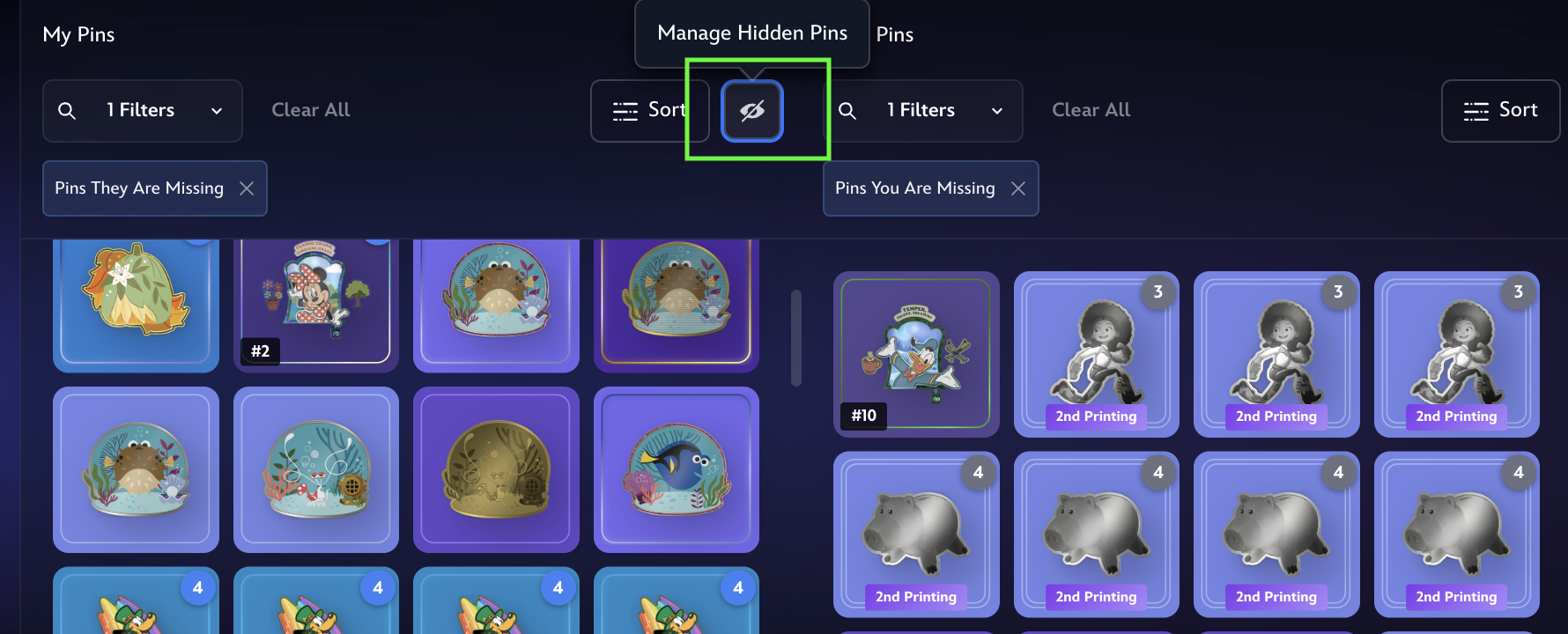
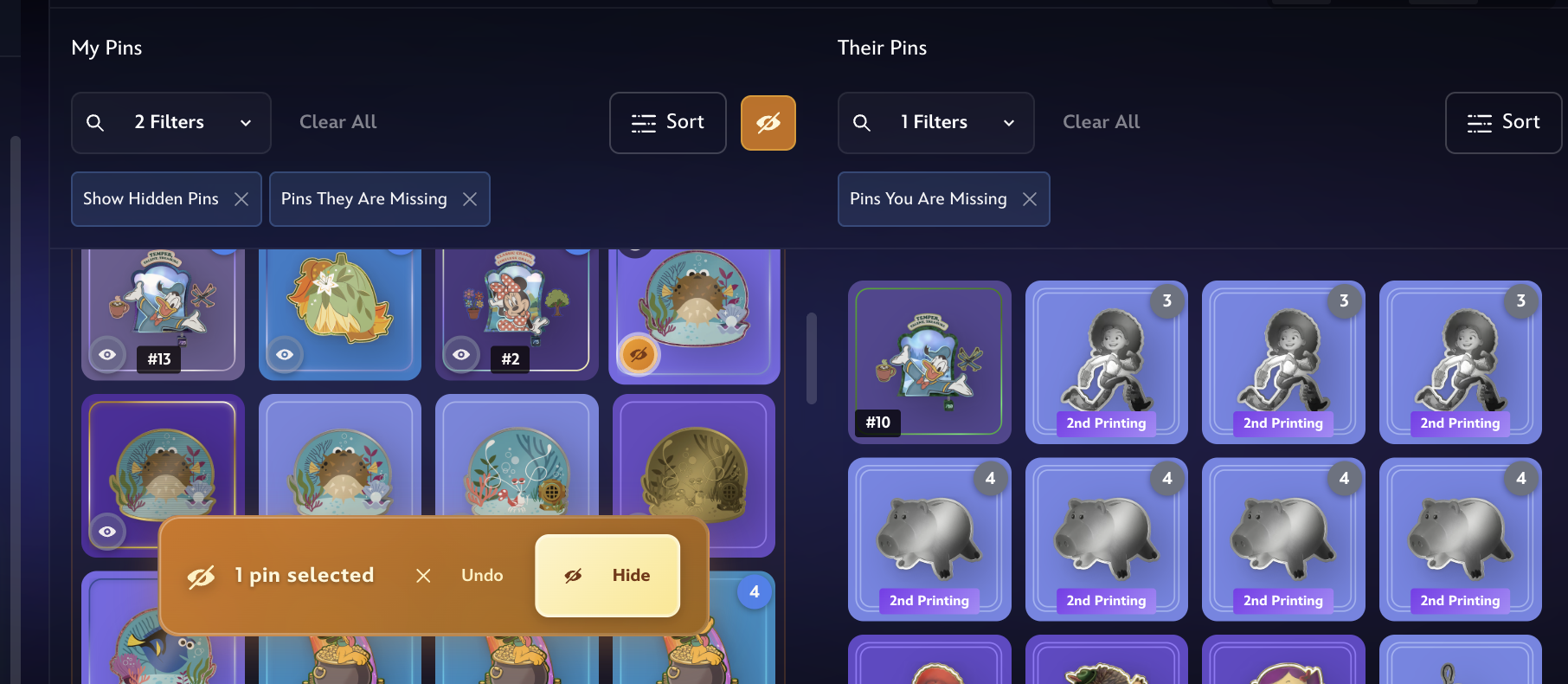
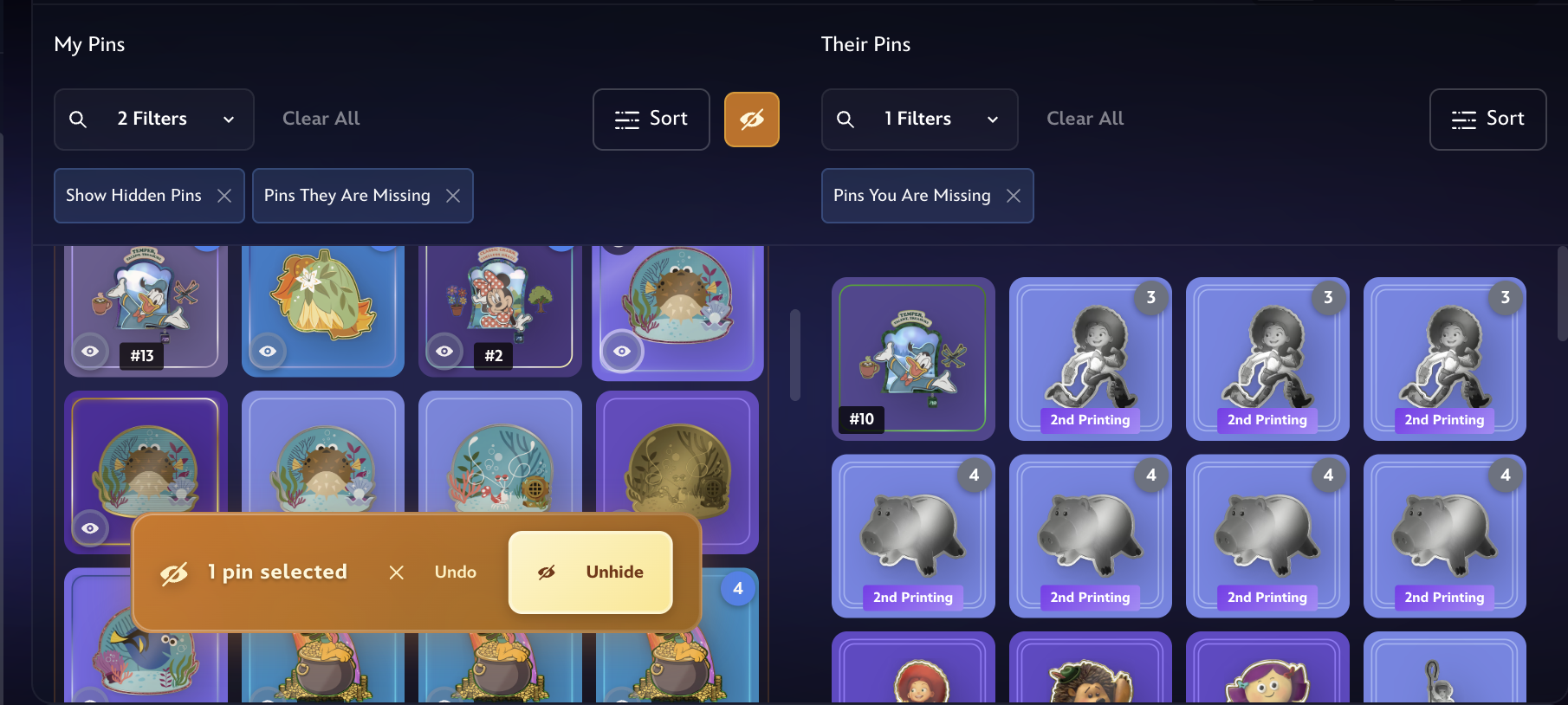
Yes. Collectors can now choose to hide digital pins they do not want visible when another user starts a trade offer. Hidden pins will not appear as available during offer creation and will remain hidden until the collector turns on the hidden view and manually selects the pins they want to make visible again. This helps reduce unwanted trade requests for pins collectors do not intend to trade.
What are the improved filters?
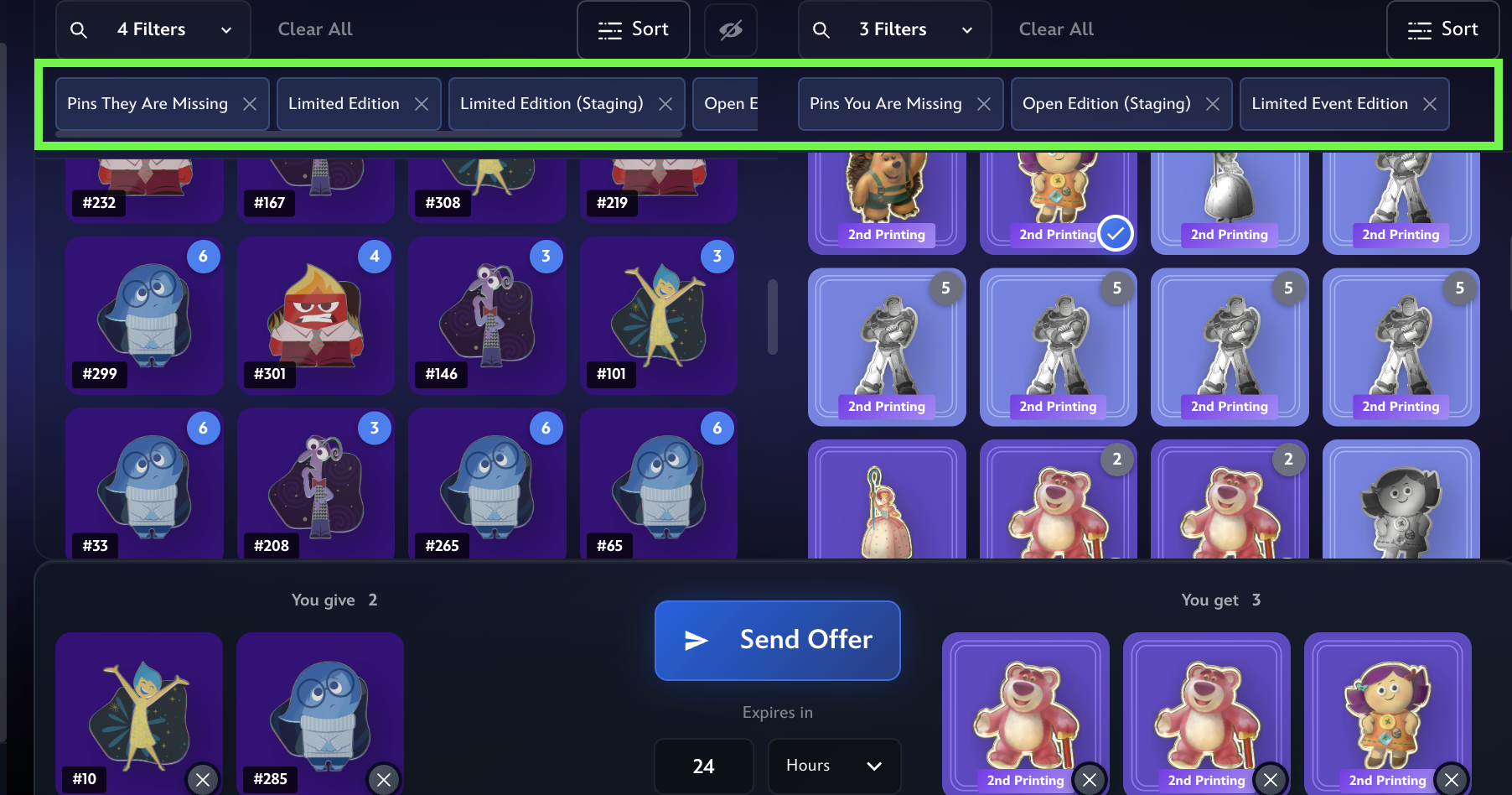
All trades now begin with two common ownership filters applied automatically: Pins They Are Missing and Pins You Are Missing. Collectors can remove these filters at any time and they will stay gone. If reselected they will remain through every trade until deselected again. Any additional filters applied during a will apply through out the entire trade.
Can I use a digital pin in multiple trade offers?
Yes, digital pins do not leave your collection until a trade is accepted and fully completed. If you use the same digital pin in multiple offers, only the first accepted trade will be successful, and all other pending offers that include that digital pin will automatically be canceled. It works the same way if you accept a trade offer for a digital pin that you included in other pending offers.
Can trades include multiple digital pins?
Yes, as long as each side of a trade includes at least one (1) digital pin.
How do I turn off trade notifications?
Some collectors may be very popular and receive a ton of trade offers for their digital pins! In such cases, they can mute notifications that are specific to trading in the hamburger menu’s Notification Preferences.